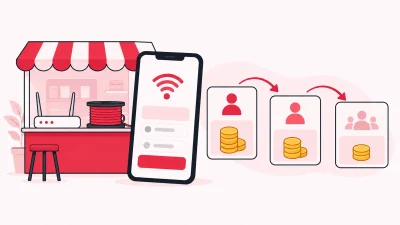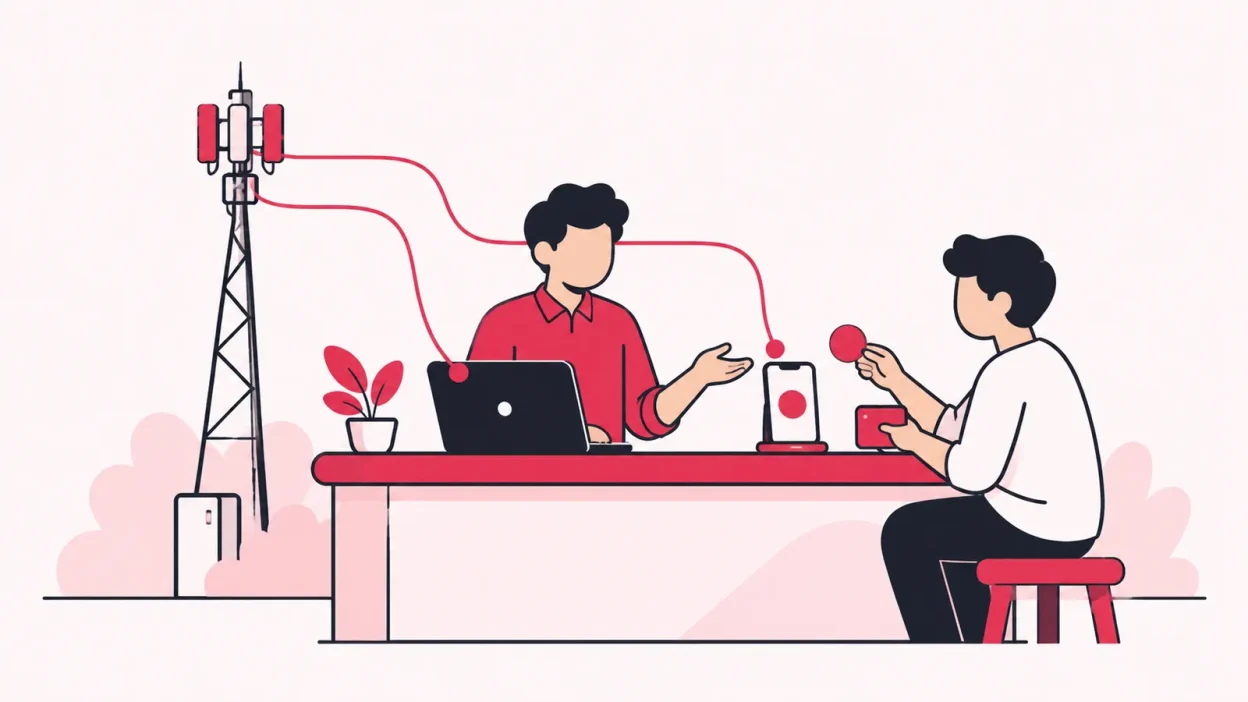
Ispsquare setup is the first step when you want one operator view for your ISP partner account, customers and recharges. This guide takes you from sign-up to a working online recharge page, using the current OneBroadband or GTPL connection flow.
Before you start: what you need
Why this matters: a clean first connection makes it easier to confirm that the right customers and balances appear under the right ISP.
Keep these items ready at your shop:
- An email address and mobile number that you will keep for the operator account.
- Your authorised OneBroadband or GTPL partner-account login.
- A short list of known customers, including their connection, plan and expiry details.
- One recent payment or recharge reference that you can use for checking the result.
- Your operator name and business details for the account and invoice records.
- A browser on your phone or computer. Customers use a web page for recharge; they do not need to install an app.
Use the partner credentials issued to you by the relevant ISP. If you need to check the upstream account first, start from the official OneBroadband partner portal or the official GTPL login page. Do not put an ISP password in a staff WhatsApp group or shared spreadsheet.
You do not need to prepare a new customer spreadsheet before trying the setup. A small sample is enough for verification. Keep the full list and KYC files ready if you are moving an existing operation into a more organised workflow.
Step 1: Sign up for ISP Square
Why this matters: the operator account is the home for your connected ISP accounts, customer records, KYC and staff access.
- Open the ISP Square get-started page.
- Enter the requested operator and contact details.
- Select the current plan or trial option shown on the page.
- Complete the payment or account confirmation step shown by the site.
- Save the sign-in email and use a strong password that is not shared with staff.
- Sign in from the ISP Square login page.
The exact fields and available plans can change. Use the current signup page as the final reference before you confirm anything, and read the current pricing section before choosing a longer billing period. Plans start low; check the current options rather than relying on an old message or screenshot.
Success looks like: you can sign in to your ISP Square operator account and reach the main workspace. You should not need to create a separate account for every customer or partner.

Step 2: Connect your ISP partner account
Why this matters: connecting the upstream account gives ISP Square the information it needs to show your customers, plans and balances in one operator view.
Start from the ISP or partner accounts area after you sign in. The menu label may vary, but the task is to add an ISP partner account, not to create a second ISP Square user.
- Choose the option to add or connect an ISP account.
- Select OneBroadband or GTPL, according to the account you resell.
- Enter the partner username and password issued by that ISP.
- Review the account name before saving. Use a clear label if you manage more than one area or ISP relationship.
- Submit the connection and wait for the confirmation shown in the panel.
- Repeat the process for the other supported ISP only if you already have an authorised partner account for it.
ISP Square currently connects OneBroadband and GTPL partner accounts. ISP passwords are stored encrypted and are not shown again after you save them. Use separate staff logins for shop work so you do not have to reveal the owner’s upstream credentials.
Customers, plans and balances sync every minute. Give the first sync time to appear, then compare a small sample with the source account. Check one active customer, one customer who recently paid and one customer close to expiry.
Success looks like: the connected account is identified clearly and its customer, plan and balance information appears without you entering the same details by hand into another register.
Step 3: Check your customer list
Why this matters: the customer list is where you confirm that the connection, plan, expiry and payment history are attached to the correct ISP.
Open the customer area and search for the sample customers you prepared. Check these fields one by one:
| Check | What to confirm |
|---|---|
| Customer | Name and contact details match your shop record |
| Connection | The right ISP and connection identifier are shown |
| Plan | The current plan is attached to the right customer |
| Expiry | The date is sensible compared with the upstream record |
| Payments | The recent payment or recharge history is visible |
| Balance context | The record is linked to the correct connected ISP account |
ISP Square keeps one customer list across connected ISPs. That does not turn OneBroadband and GTPL into one upstream account. It gives you one place to find the customer while keeping the serving ISP clear.
If you handle KYC, upload it to your operator account and keep your collection process aligned with the requirements of the relevant ISP. The KYC stays with your ISP Square account if you leave an ISP. For a legal or compliance question, check with your ISP or CA rather than treating this guide as legal or tax advice.
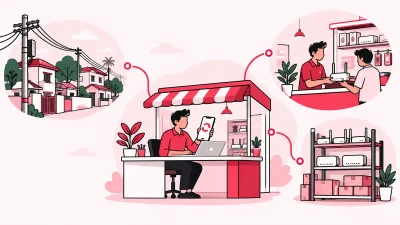
You can also connect your physical records to the same workflow. A router or ONU can be tracked through store → partner → installed at customer → written off, so staff can see whether a device is available, assigned or already installed.
Success looks like: you can search for a known customer once, see the correct ISP and plan, and open the payment history without asking which portal contains the record.
For a wider checklist, read ISP billing software for Indian resellers, which covers the customer, partner, KYC and device work around an ISP account.
Step 4: Share your online recharge page
Why this matters: customers can pay online from a browser, reducing the need to call the shop for every renewal.
After the connected account and customer records look correct:
- Open the online recharge or customer payment page in your operator workspace.
- Check what customer or connection details the page asks for.
- Copy the page link using the share or copy option provided.
- Send it to one known customer first, along with a simple instruction to check the connection details before paying.
- Watch the payment and recharge result in your operator account.
- Reopen the customer record and confirm the payment or recharge history.
The customer uses a web page, so there is no app to install. The ISP account is topped up and you can see the result in the operator view. Keep the first test small and record its payment reference.
Do not blindly retry a recharge if the result takes time to show. First check the transaction status, payment history and wallet ledger. If the status is unclear, keep the reference ready for support rather than creating a second request.
Success looks like: the customer can reach the payment page, the payment is visible to you, and the recharge result can be matched to the correct ISP and customer record.
Step 5: Add a partner or staff login
Why this matters: your operator account should remain under your control while partners and staff get only the access needed for their work.
If you work with local partners, set up the structure before handing over customer work:
- Keep your account at the operator level.
- Add a partner under the operator when that person manages their own local customers.
- Add a sub-partner under a partner when you need a third level.
- Check that each person has their own login, wallet and customer view.
- Set your own retail price for each plan and level.
- Review the commission posted to the correct wallet after a test recharge.
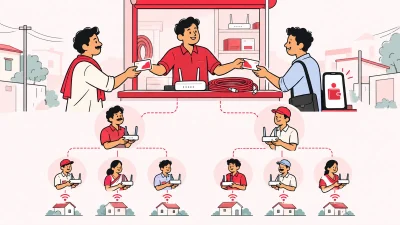
The supported structure is operator → partner → sub-partner. The ISP cost stays hidden from partners, while you control your retail price and the commission posted on each recharge.
For staff, create separate logins and scope access to the screens they need. A cashier may need customer and recharge screens. Someone handling devices may need stock screens. Every action is logged, so you have a record of work completed from different logins.
Success looks like: staff can do their assigned work without the owner password, a partner sees the customers assigned to that level, and the wallet entry is clear after a recharge.
Step 6: Run one controlled setup test
Why this matters: one complete test catches a wrong account mapping before it becomes part of your daily counter routine.
Use one known customer from the connected ISP and follow this sequence:
- Find the customer in the common list.
- Confirm the ISP, connection, plan and expiry.
- Check the available wallet or account balance.
- Share or open the web recharge page.
- Complete one permitted test recharge.
- Wait for the result instead of submitting a second request.
- Check the customer payment history and the relevant wallet ledger.
- Note the reference and the final status in your private shop record.
If you connected both OneBroadband and GTPL, repeat the checks with one customer from each. This confirms that the ISP label stays clear when you move between accounts.
Success looks like: you can answer five questions for the test customer: which ISP, which plan, what expiry, what payment reference and which wallet entry.
Verify your ISP Square setup
Before giving the page to many customers or staff, use this short checklist:
- Can you sign in from the ISP Square login page?
- Is the connected OneBroadband or GTPL account labelled correctly?
- Can you find a known customer in the common list?
- Are the connection, plan, expiry and payment history visible?
- Did the latest customer, plan and balance information sync?
- Can a customer open the recharge page without an app?
- Can you confirm a recharge without blindly retrying it?
- Is KYC stored under your operator account?
- Does each partner or staff member have a separate login?
- Can you explain the wallet or commission entry after a test recharge?
If these checks pass, your first-day setup is ready for normal shop work. Keep the official upstream portal available for ISP-specific account tasks, but use the operator view for your customer, recharge and partner routine.
Troubleshooting common setup questions
The account will not connect
Check that you selected the right ISP and used the partner credentials issued for that ISP. Do not guess the password repeatedly. Confirm access in the official upstream portal, then try the connection again or contact ISP Square support with the account details needed to identify the issue.
A customer is missing after sign-up
First confirm that the correct partner account is connected and that the first sync has had time to run. Search using the identifier you recognise from the ISP record, then compare the customer, plan and expiry with the source account.
The customer sees the wrong connection
Stop the test and check the connected ISP label and customer mapping. Do not send the page to more customers until the correct connection is shown. Keep the customer’s payment reference ready if support needs to trace the record.
A recharge result is unclear
Do not submit the same recharge again immediately. Check the transaction status, payment history and wallet ledger first. If the status remains unclear, contact support with the customer and payment reference.
My staff need different access
Use separate staff logins with screen-level permissions. Give each person only the screens needed for their role, and keep the owner account private. The action log helps you review which login completed a task.
Reselling another ISP? Tell us which
ISP Square currently connects OneBroadband and GTPL partner accounts. If you resell another ISP, tell the team which provider you use before planning your setup, so you can confirm whether that account can be connected.
Use the ISP Square contact page for the question. Include the ISP name and the type of partner account you hold; never send an ISP password in a contact form or message.
FAQ
How do I connect a OneBroadband account to ISP Square?
Create your ISP Square operator account, sign in, choose the option to add an ISP account and select OneBroadband. Enter the authorised partner credentials, save the connection and check a few customers after the sync.
Can I connect a GTPL partner account too?
Yes. ISP Square currently connects GTPL as well as OneBroadband. Add the GTPL partner account separately, keep the ISP label clear and verify one GTPL customer before using the workflow for daily recharges.
Do customers need an app to recharge?
No. The online recharge page works in a browser, so customers can pay without installing an app. You can see the payment and recharge result in the operator account.
Are ISP passwords visible after I connect the account?
No. ISP passwords are stored encrypted and are not shown again after the connection is saved. Keep the owner account private and use separate staff logins for shop work.
What should I do if I resell a different ISP?
Tell ISP Square which ISP you resell and confirm compatibility before changing your workflow. The current connected accounts are OneBroadband and GTPL, so do not assume another provider is supported.