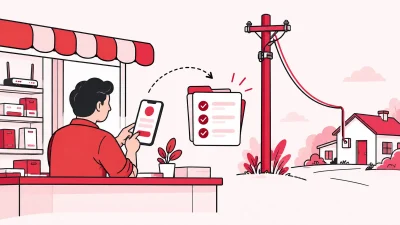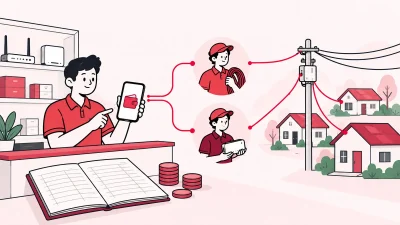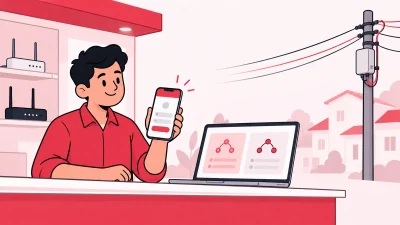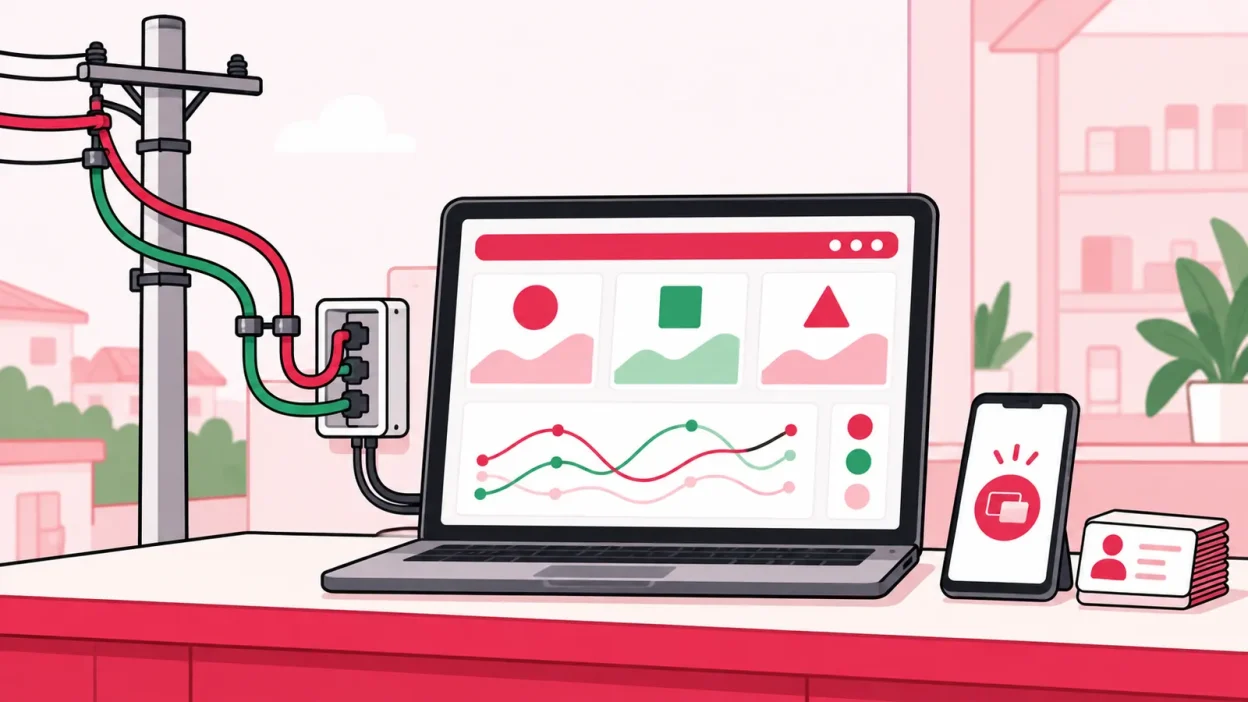
Multi isp reseller software helps you run two or more upstream ISP relationships without keeping separate customer lists, recharge notes and partner records. For a local operator, the right system keeps each ISP’s cost and connection clear while giving you one daily view of customers, payments, plans and expiry dates.
This guide explains what changes when you resell more than one ISP, what to prepare, and how to set up a practical workflow for OneBroadband, GTPL or another ISP you are authorised to resell. ISP Square currently connects OneBroadband and GTPL partner accounts; tell the team which ISP you resell before planning a new connection.
What you need before you start
Prepare one small record for each ISP before connecting anything. This makes it easier to correct old entries and prevents a OneBroadband plan from being treated as a GTPL plan.
| Item to prepare | What to record |
|---|---|
| Partner account | ISP name, account identifier and authorised login |
| Customer list | Name, contact, connection identifier and serving ISP |
| Plan details | Current plan, retail amount and expiry date |
| Payment work | Recent recharges, pending follow-ups and payment references |
| Wallet record | ISP account balance and your own partner or shop notes |
| KYC and devices | Documents, router or ONU assignment and installation status |
Keep the original ISP information available while you clean the list. Do not merge two connections just because the same household has services from both providers. The ISP, connection and plan should remain visible on each customer record.
The official GTPL affiliate enquiry page includes broadband affiliate options. Use the partner process supplied by your upstream ISP and check with the ISP when a KYC, commercial or account question is unclear.
Why operators resell more than one ISP
A single ISP may suit one street or building but not every customer around your shop. A second ISP can give you another option when coverage, available plans or a local partner arrangement differs by area.
The reason is operational, not only sales-related. Each upstream ISP can have its own account, plan names, wallet, recharge process and customer identifier. Your customer still expects one clear answer from your shop: which connection they have, what they pay, when it expires and how to recharge.
GTPL’s official site describes its broadband service and provides a separate affiliate enquiry route for businesses. OneBroadband operators should use the official OneBroadband partner portal and the partner access issued for their account. Your software should bring the work into one operator view without pretending that the upstream accounts are the same.
Step 1: Map the work done in separate portals
Why this matters: you need to know which tasks are duplicated before moving them into one routine.
For one normal shop day, note every time you do the following for each ISP:
- Open the ISP partner portal.
- Search for a customer or connection.
- Check the plan, balance and expiry.
- Receive or confirm a recharge.
- Update your notebook, spreadsheet or staff message.
- Check whether a partner or sub-partner needs a wallet update.
Now put the repeated work into a simple table:
| Daily work | Separate-portal habit | Better operator control |
|---|---|---|
| Find a customer | Search one ISP list, then another | One customer list with ISP shown |
| Check expiry | Look in different account views | Plan and expiry beside the connection |
| Take a recharge | Follow a different flow for each ISP | One recharge routine with clear ISP context |
| Review money | Check separate balances and notes | ISP account plus wallet history |
| Answer a partner | Ask which portal was used | Partner, customer and wallet in one view |
This exercise also shows where staff need clearer access. A person collecting payments does not need the same screens as the person tracking routers or managing partner wallets.
Success looks like: you have one short list of repeated tasks, know which ISP each task belongs to and can see where a common operator workflow will save duplicate entry.
Step 2: Connect each ISP account separately
Why this matters: one dashboard should simplify your work while preserving the identity and cost of every upstream connection.
In ISP Square, use this setup sequence:
- Open the ISP Square login page, or get started if you do not yet have an operator account.
- Add the first supported ISP partner account using the authorised credentials requested by the connection form.
- Label the connection clearly, such as “OneBroadband – Main Area”.
- Add the second ISP account and label it separately, such as “GTPL – Main Area”.
- Check that the customer, plan and balance information appears under the correct ISP.
- Compare a few known records with your source ISP account before making the panel your shop’s main working view.
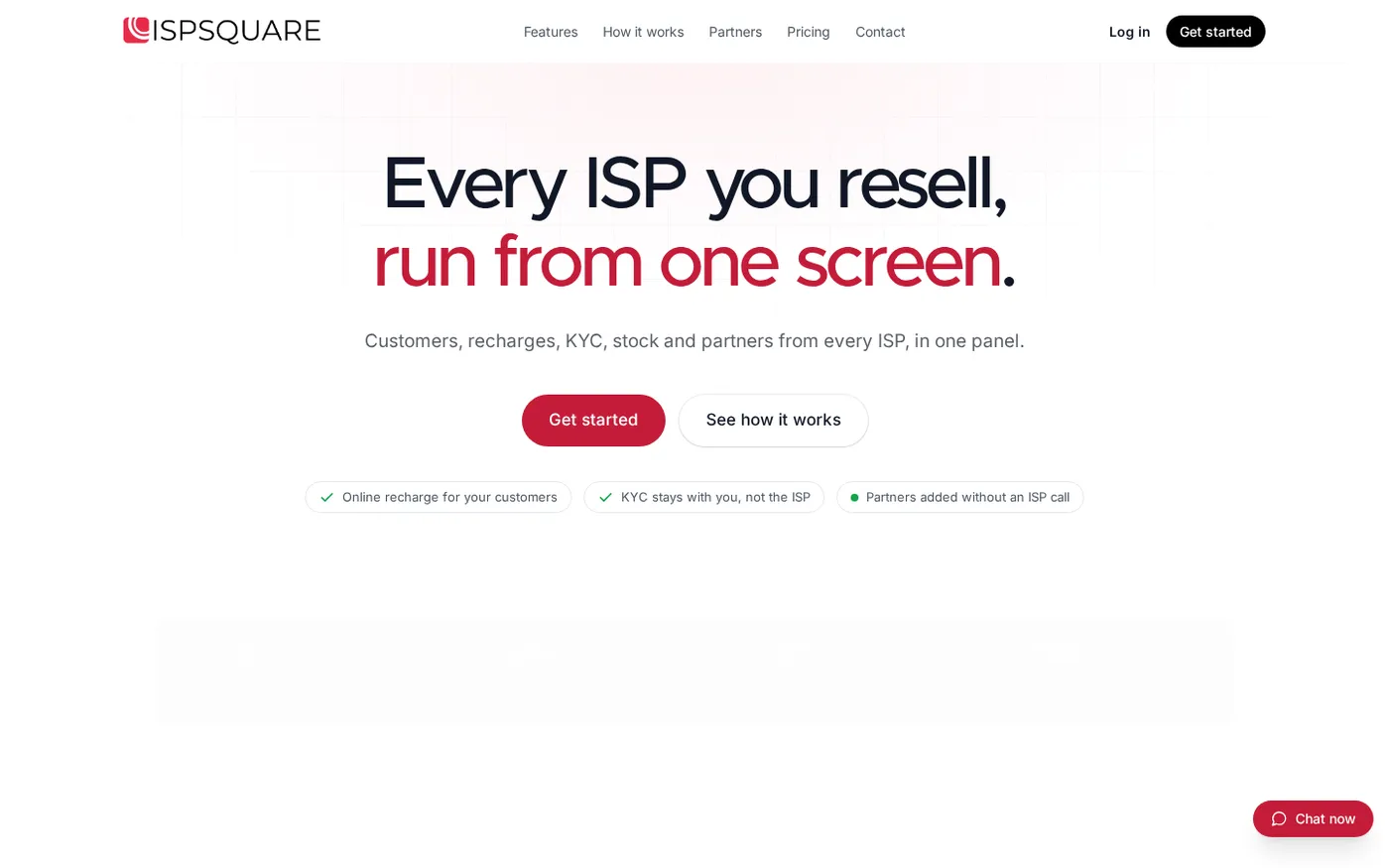
ISP Square currently connects OneBroadband and GTPL. Customers, plans and balances sync every minute. The goal is not to remove the separate upstream relationships; it is to give you one place to find your own customers and confirm which ISP serves each connection.
You can review the ISP Square workflow before asking staff to use the new routine.
Success looks like: you can open one operator account, select a customer, see the serving ISP and plan, and return to the same list without keeping separate handwritten registers as your only record.
Step 3: Keep one customer list across ISPs
Why this matters: customers call your shop, not the spreadsheet where you stored the connection.
For each customer, review these fields:
- Customer name and contact details.
- ISP serving the connection.
- Connection or account identifier.
- Plan name and expiry date.
- Payment and recharge history.
- KYC documents held by your business.
Search for one active customer from each connected ISP. Then check a customer with a recent recharge and one nearing expiry. The ISP must remain visible, even though the search happens in a common list. This avoids sending a customer to the wrong recharge flow or checking the wrong partner balance.
KYC uploaded to ISP Square stays under your ISP Square operator account rather than under one ISP. That keeps the record with your business if your upstream relationship changes. Collect and retain only what your ISP and applicable process require, and check with your ISP or CA when the question is legal or compliance-related.
The features on ISP Square show the parts of the operator view that support this list, including customer work, online recharge, KYC and stock.
Success looks like: a search returns the right customer once, with the serving ISP, connection, plan, expiry, payment history and KYC location clear.
Step 4: Set your own retail price for each ISP plan
Why this matters: two upstream plans may have different costs, and partners at different levels may need different retail prices.
Do not keep a single “broadband price” column for every connection. Create a plan view that records:
- The ISP and upstream plan.
- Your retail price for that plan.
- The level receiving the price: operator, partner or sub-partner.
- The commission to post when a recharge is completed.
- The customer-facing plan name used at your shop.
ISP Square lets you set your own retail price per plan and per level. The ISP cost stays hidden from partners, while commission is posted to the correct wallet on each recharge. This gives you a consistent way to work with a partner in one mohalla and a sub-partner in another without mixing their commercial records.
Use this check before publishing or selling a plan:
| Check | Question |
|---|---|
| ISP identity | Is this the OneBroadband or GTPL plan you mean to sell? |
| Customer price | Is the retail price correct for this level? |
| Partner price | Does the partner see only the amount they need? |
| Commission | Will the correct wallet receive the entry after recharge? |
| Expiry | Will the customer record show the right service period? |
Success looks like: every sellable plan has a clear ISP label, a retail price for the right level and a commission rule that your partner can understand.
This is especially important when two ISPs have similar plan names. Use the ISP name in your internal label even if the customer-facing name is shorter.
Step 5: Run recharges and check the money trail
Why this matters: a payment should be easy to trace from the customer to the correct ISP account and wallet entry.
Use the same sequence for every connected ISP:
- Open the customer from the common list.
- Confirm the ISP, connection and plan.
- Check the current expiry and payment history.
- Start the recharge from the online recharge page.
- Wait for the status shown in the panel before taking another action.
- Confirm the payment or recharge history and the relevant wallet entry.
Customers can pay through a web page, so they do not need to install an app. The relevant ISP account is topped up and you can see the result as the operator. Keep the transaction reference with the customer record when a staff member needs to follow up.
If a recharge times out, do not blindly submit it again. First check the transaction status and ledger. ISP Square’s wallet ledger is append-only, which gives you a recorded trail instead of relying on a changed balance or memory.
Success looks like: you can trace a recharge from the customer’s payment to the correct ISP context, customer history and wallet entry without creating a duplicate request.
Step 6: Add partners and staff without losing control
Why this matters: multi-ISP work becomes harder when every person uses the owner’s login or keeps a private customer list.
Use a simple three-level structure:
- The operator owns the connected ISP accounts and the overall customer view.
- Partners work under the operator with their own login, wallet and customers.
- Sub-partners can work under a partner with their own login, wallet and customer view.
Give staff separate logins scoped to the screens they need. A collections worker may need customer and recharge screens. A person issuing ONUs may need stock records. Every action is logged, so you can review what happened without asking the whole shop who changed an entry.
Stock follows a clear path: store, partner, installed at customer, then written off when appropriate. Keep the ISP and customer connection alongside the device assignment so an ONU or router does not become a loose item in a notebook.
ISP passwords are stored encrypted and are not shown again. Keep the owner account private, use individual staff access and update connected credentials only through the authorised account flow.
Success looks like: every person has the login and screen access needed for the job, while the operator retains control of ISP accounts, partner pricing, wallets and the action log.
Verify your multi-ISP setup
Run this check before using the system as your main shop routine:
- One customer from each ISP is visible in the common list.
- The ISP, connection, plan and expiry are correct.
- A recent payment appears in the customer’s history.
- The correct ISP account or wallet is used for a recharge.
- A customer can open the web recharge page without installing an app.
- A timed-out recharge can be checked before another attempt.
- KYC is under your operator account.
- Partner and sub-partner wallets show their own entries.
- Staff can see only the screens assigned to them.
- A device can be traced from store to partner to customer.
If these checks pass, you have more than a second login. You have one operating process that keeps the source ISP clear at every important step.
Common problems to avoid
The same customer appears twice
Check the connection identifier and serving ISP before creating a new record. A household may have two different services, but each connection should retain its own ISP, plan, expiry and payment history.
Similar plans are being sold at the wrong price
Review the ISP label and level-specific retail price. Keep separate entries for plans that look similar, then confirm the partner price and commission before the next recharge.
A recharge is not clear after a timeout
Check the transaction status, customer history and append-only wallet ledger. Do not start a second recharge until the first result is understood. Keep the payment reference ready for support if a review is needed.
A partner asks for the upstream cost
Use the partner’s own retail and commission view. ISP Square keeps the ISP cost hidden from partners, so you can manage the commercial relationship at your level.
I resell an ISP other than OneBroadband or GTPL
ISP Square currently connects OneBroadband and GTPL. Tell the team which ISP you resell and confirm compatibility before changing your daily process or promising a customer a new workflow.
FAQ
What is multi-ISP reseller software?
It is a system for operators who resell services from more than one ISP and need one working view for accounts, customers, plans, recharges and partner wallets. The useful setup keeps each ISP’s connection and cost clear rather than merging them into one generic list.
Can I manage OneBroadband and GTPL in one panel?
Yes. ISP Square currently connects OneBroadband and GTPL partner accounts. Customers, plans and balances sync every minute, while each connection continues to show the ISP that serves it.
Can I set a different retail price for each ISP?
Yes. ISP Square lets you set your own retail price per plan and per level. It also posts commission to the relevant wallet on each recharge while keeping the ISP cost hidden from partners.
Do customers need an app to recharge?
No. The customer-facing recharge page works on the web, so the customer can pay online without installing an app. You can see the recharge as the operator and keep it with the right ISP and customer record.
How should I choose a plan?
Choose based on the number of ISP accounts, customers, partners and staff who need access. Plans start low; see the current pricing because the available options can change. For an operator managing several ISPs, the Growth option is the relevant product to review.