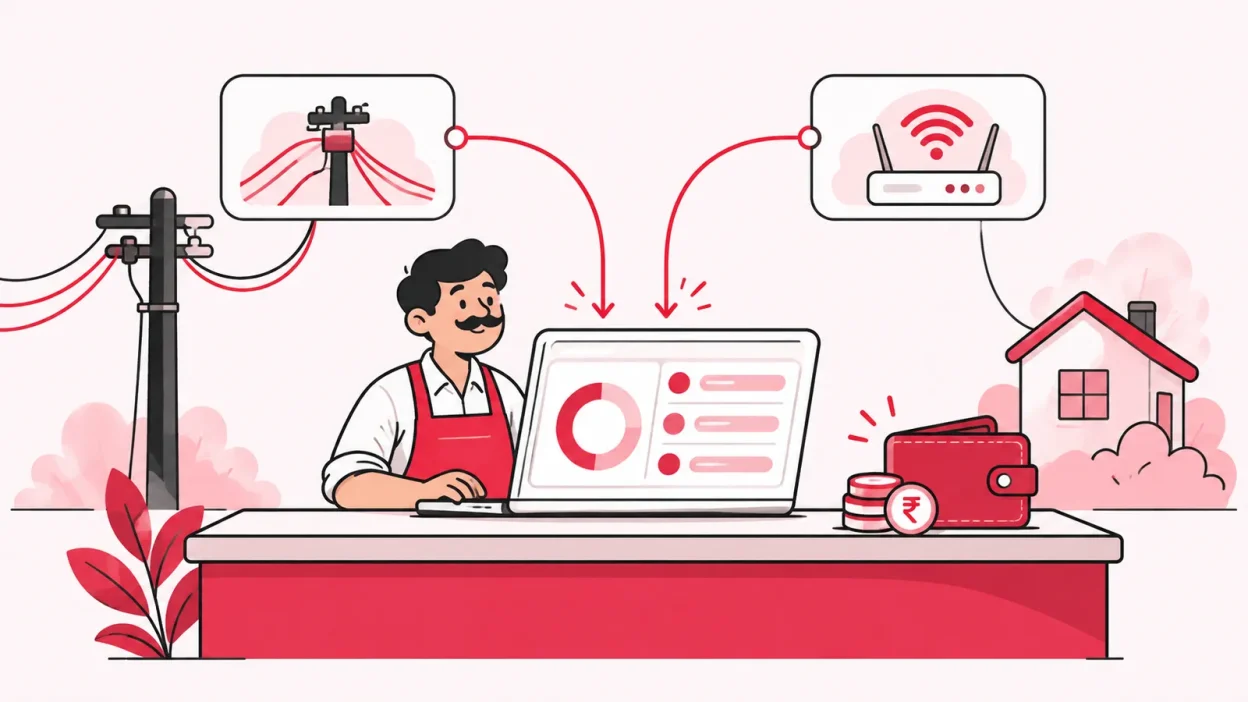
If you manage multiple isp partner accounts, the daily work can become a chain of logins, balances and customer lists. The practical fix is to bring the accounts into one operator view, so you can check customers, recharges and wallet movement without opening one portal after another.
This guide uses a common example: an operator reselling OneBroadband and GTPL. ISP Square currently connects ISP partner accounts for OneBroadband and GTPL; if you resell another ISP, ask the team whether it can be connected before you plan a move.
What you need before you start
Keep these items ready for each ISP account:
- Your partner or operator login details.
- The list of customers currently served through that ISP.
- Current plan names, expiry dates and pending recharge work.
- A simple record of your available wallet balance and any recharge waiting for confirmation.
- KYC files and device records that you want to keep under your own business account.
Do not mix the two ISP lists while preparing. Mark each customer with the ISP that serves the connection. This gives you a clean starting point and makes it easier to spot a duplicate customer or a plan that was entered under the wrong provider.
The official GTPL login page is one example of the separate account access an operator may already use. For OneBroadband, use the OneBroadband partner portal supplied for your account. Your ISP Square setup should use the partner access issued to you; do not share passwords with staff in a notebook or chat group.
Step 1: Map a normal day with separate portals
Why this matters: you need to see which work is repeated before you decide what should be brought into one panel.
For one working day, write down each time you do one of these tasks:
- Sign in to an ISP portal.
- Search for a customer by name, mobile number or connection.
- Check the plan and expiry date.
- Check your partner balance or wallet.
- Add money or start a recharge.
- Confirm whether the customer’s payment reached the ISP account.
- Update your own register, spreadsheet or staff message.
Now make two columns, one for each ISP. Put the same task on the same line. For example:
| Work | OneBroadband account | GTPL account |
|---|---|---|
| Find a customer | Separate search | Separate search |
| Check expiry | Separate customer view | Separate customer view |
| Check balance | Separate wallet view | Separate wallet view |
| Complete a recharge | Separate payment flow | Separate payment flow |
| Record the result | Your register or message | Your register or message |
The aim is not to change how either ISP provides service. It is to give you one operating view for your own customers and partner work.
Step 2: Separate the money and customer problems
Why this matters: a missed follow-up often starts when a customer, plan or wallet entry is correct in one place but missing from your own record.
Review the two columns and mark every point where you copy information by hand. Pay special attention to:
- A customer appearing in one list but not the other.
- A customer with the wrong ISP or plan written in your register.
- A recharge that was paid but is waiting for confirmation.
- A wallet balance checked at the wrong portal.
- An expiry reminder that depends on one person remembering it.
- A staff member who can see more financial information than needed for the job.
This is where one login helps. ISP Square keeps one customer list across the connected ISPs, with the connection, plan, expiry, payments and history together. Customers do not become one ISP account; your operator view becomes one place to find the right record.
Use the features section on ISP Square as a checklist. Look for the parts that match your routine: one customer list, online recharge, KYC under your account, stock tracking and controlled staff access.
Step 3: Bring both customer lists into one view
Why this matters: the customer is the first thing your staff searches for when a payment, expiry or support question comes in.
Start with the cleanest list you have. For each connection, confirm the following before adding or reviewing it:
- Customer name and contact details.
- ISP that serves the connection.
- Current plan.
- Expiry date.
- Payment history that you need for follow-up.
- KYC documents held by your business.
After the records are in the operator view, search for a few known customers from each ISP. Open the connection, plan, expiry, payments and history. Then check a customer who has more than one service or has changed plans.
Success looks like this: a staff member can find the customer once, see which ISP serves the connection, and understand what needs action without asking, “Which portal should I open?”
Keep KYC under your operator account. ISP Square stores the uploaded KYC with your ISP Square account rather than with the ISP, so the documents stay with your business if you later leave an ISP. For the exact documents you should collect, follow your ISP’s instructions and check with your CA or ISP where a legal or compliance question is involved.
Step 4: Check balances and complete recharges in one routine
Why this matters: a recharge should be traceable from the customer’s payment to the ISP account and your own operator record.
Use the same order for every recharge, regardless of which connected ISP serves the customer:
- Open the customer from the common list.
- Confirm the ISP, connection and plan.
- Check the expiry and payment history.
- Confirm the available wallet or account balance for that ISP.
- Start the recharge through the online recharge page.
- Wait for the result shown in the panel before taking another action.
- Reopen the customer record and confirm the payment or recharge history.
The customer can pay through a web page, so there is no app to install. The ISP account is topped up and the operator can see the result. Use a customer-facing recharge link where it suits your workflow, then keep the panel as your internal record.
Do not blindly retry a recharge after a timeout. First check the transaction status and ledger. A second attempt can create confusion about whether the first request completed. Keep the payment reference with the customer record when you need to investigate a result.
The how it works section explains the operator flow. Your daily check should end with three clear answers: which ISP was used, what amount was recorded, and whether the customer’s expiry or plan history changed.
Step 5: Connect the accounts and review the sync
Why this matters: the panel is useful only when each connected account is clearly identified and the information is easy to verify.
In your ISP Square setup:
- Sign in to your ISP Square account.
- Add the partner account for each supported ISP you resell.
- Label the accounts clearly, such as “OneBroadband – Main Area” and “GTPL – Main Area”.
- Check that customers, plans and balances are visible under the correct ISP.
- Compare a few records with the source ISP portals.
- Review the recharge flow with one controlled test before making it part of the shop routine.
Customers, plans and balances sync every minute. After connecting an account, give the sync time to show the data, then compare a small sample. Check one active customer, one recently paid customer and one customer nearing expiry.
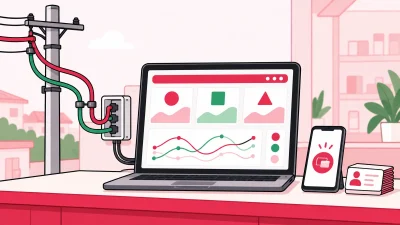
The supplied homepage screenshot is useful for explaining the product’s single-panel approach to staff before they begin the account connection:
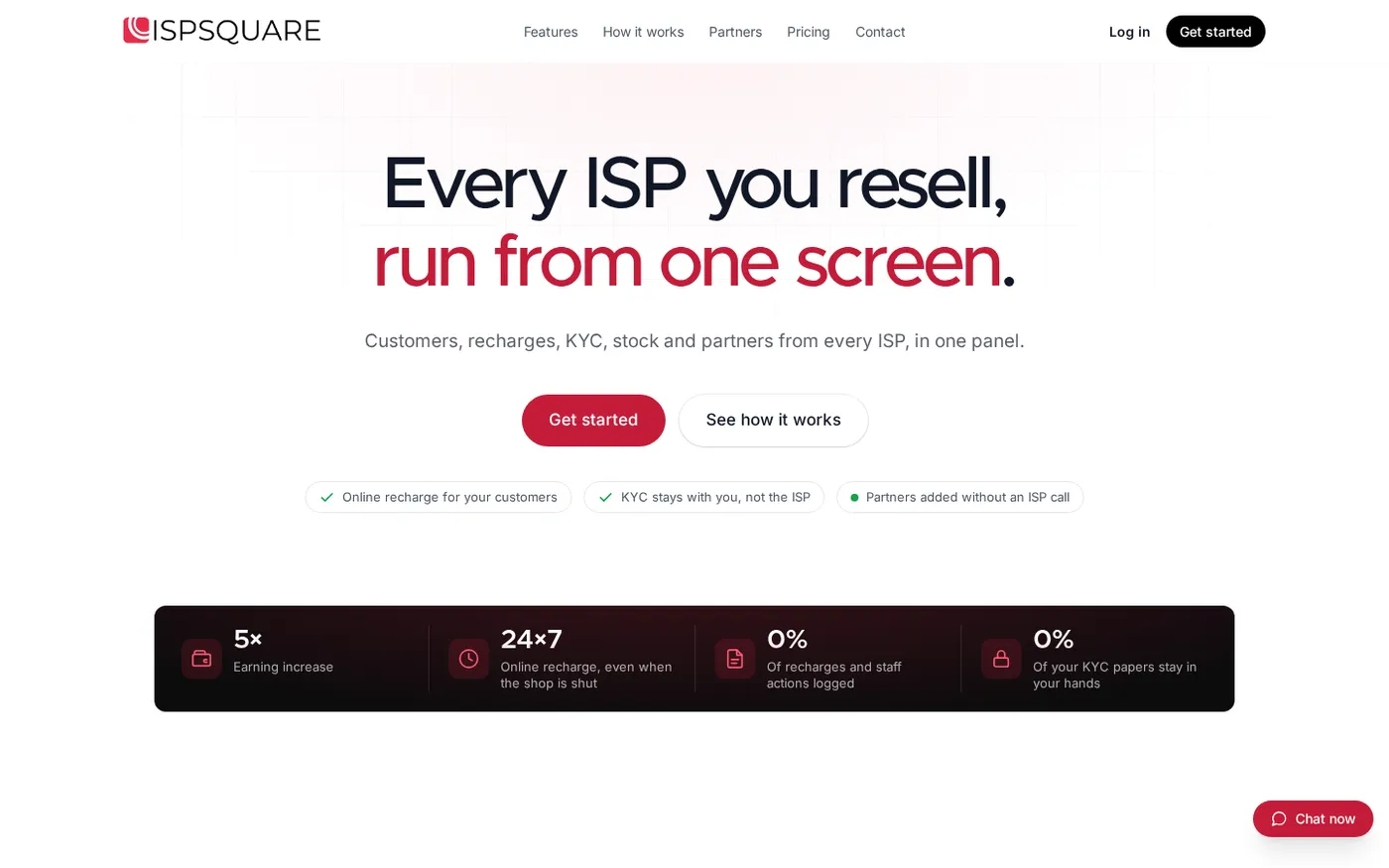
Success looks like this: you can move from a customer record to the right ISP context, see the relevant balance, and return to the same customer list without keeping two browser tabs as your only control system.
Step 6: Give partners and staff the right view
Why this matters: combining ISP accounts should make ownership clearer, not give every person access to every task.
If you work with partners or sub-partners, create a simple structure:
- You are the operator at the top.
- Partners work under your account.
- Sub-partners can work under a partner.
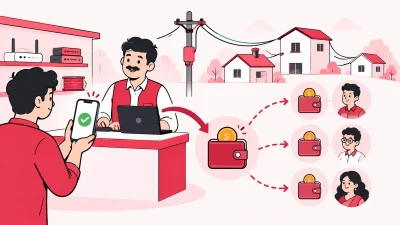
- Each level has its own login, wallet and customer view.
Set your own retail price for each plan at each level. The ISP cost stays hidden from partners, and the commission is posted to the correct wallet on every recharge. The wallet ledger is append-only, so review it regularly and explain a balance from recorded entries rather than from memory.
For staff, give access only to the screens they need. A collection staff member may need customer and recharge screens. A person checking stock may need device records. Every action is logged, which gives you a clear record when more than one person works from the shop.
ISP passwords are stored encrypted and are not shown again. Keep the owner login private, use separate staff logins and remove access when a staff member stops working with you.
Verify your setup before using it every day
Run this short check for both ISP accounts:
- Can you find a customer from the common list?
- Is the ISP, plan and expiry correct?
- Can you see the payment history?
- Is the correct wallet or account balance shown?
- Can a customer pay through the web recharge page?
- Can you confirm the recharge result without retrying blindly?
- Is the KYC file under your operator account?
- Can each staff member see only the screens assigned to them?
- Can you explain a partner commission entry from the wallet ledger?
If the answer is yes, your routine has moved from “remember two portals” to “work from one operator view and verify the ISP context”. Keep the source ISP portals available for account-level checks, but make your common customer list the first place your shop starts.
Troubleshooting common setup questions
A customer appears under the wrong ISP
Check the connection mapping and the original ISP account. Correct the source detail before changing your shop register. Then confirm the customer record again after the next sync.
The balance does not match what you expected
Confirm that you are viewing the correct connected ISP account and wallet. Compare the latest ledger entry with the source portal, and do not start another recharge until the transaction status is clear.
A recharge times out
Do not submit the same recharge again immediately. Check the transaction status, payment reference and wallet ledger first. If the result remains unclear, keep the reference ready when you contact support or the relevant ISP.
My staff need different access
Use separate staff logins with screen-level permissions. Keep customer collection, partner management, wallet work and stock work with the people who actually handle those tasks. The action log helps you review what was done and when.
I resell an ISP other than OneBroadband or GTPL
ISP Square’s current connected ISP list includes OneBroadband and GTPL. Tell the team which ISP you resell and confirm compatibility before committing your daily process to a new connection.
FAQ
Can I manage OneBroadband and GTPL from one login?
Yes. ISP Square is designed to connect your OneBroadband and GTPL partner accounts in one operator view. Customers, plans and balances sync every minute, while the ISP context remains visible for each connection.
Do my customers need to install an app to recharge?
No. Online recharge uses a web page, so a customer can pay online without installing an app. The ISP account is topped up and the operator can see the result in the panel.
Will my KYC stay with me if I leave an ISP?
KYC uploaded to ISP Square stays under your ISP Square operator account rather than being stored with the ISP. Keep your records accurate, and check with your ISP or CA if you have a question about what KYC your business must collect.
Can I give a partner a separate login and wallet?
Yes. The partner structure supports an operator, partner and sub-partner level. Each can have its own login, wallet and customer view, while you set retail prices and track commission through the wallet ledger.
How should I choose a plan?
Choose based on the number of ISP accounts, customers, partners and staff who need access. Plans start low; see the current pricing because the available options can change. For a multi-ISP shop, the Growth plan is the relevant place to start the comparison.