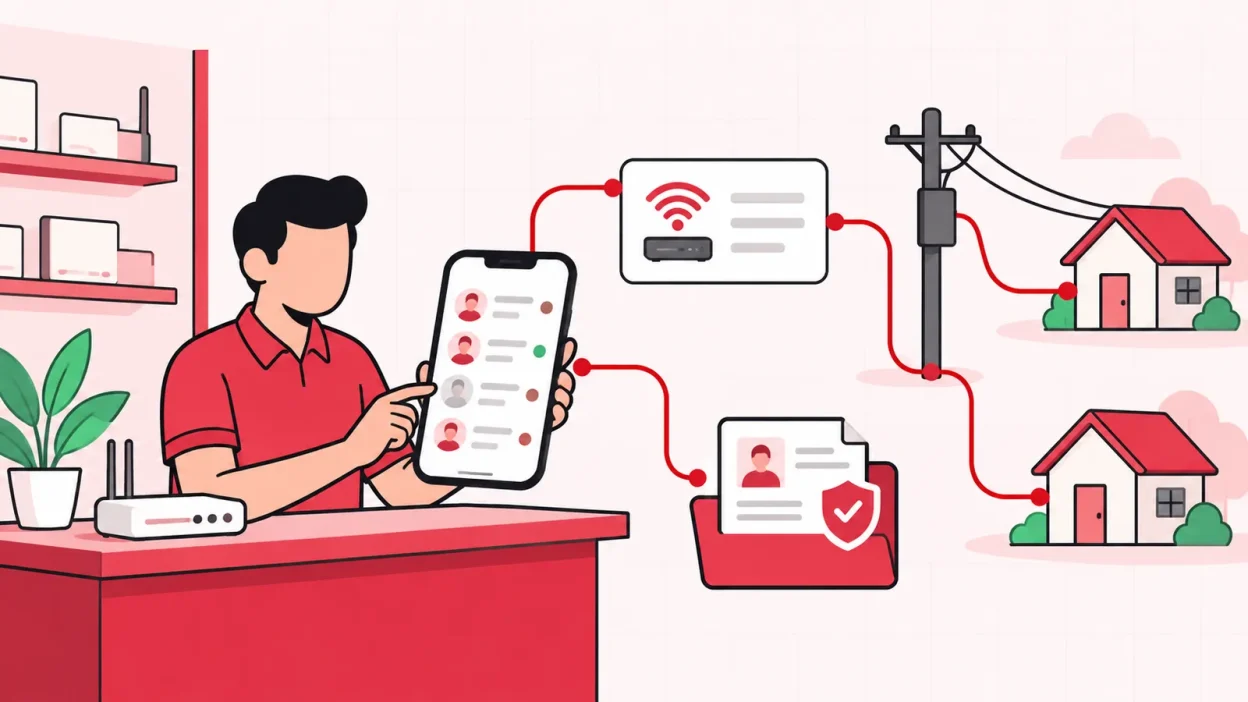
Broadband customer management software should give you one clear record for every connection, not another place to enter the same details. For a local operator, that record needs to bring together the ISP, plan, expiry, payments, history, KYC and the person responsible for the customer.
This guide shows what to organise, what to check at the shop counter and how ISP Square keeps customer work together when you resell OneBroadband, GTPL or another supported upstream service.
What you need before you start
You do not need a perfect database before you begin. You need a short, consistent list of the fields your staff must fill every time.
Prepare these items:
- The customer’s name and reachable mobile number.
- The connection or account identifier given by the ISP.
- The upstream ISP name and the plan currently selected.
- The installation address and the partner responsible for the connection, if applicable.
- The current expiry date, payment status and previous payment references.
- The KYC document status and the location of the authorised copy.
- The router or ONU details, if a device was issued.
If you already use a register, spreadsheet or chat group, use it as a source for checking records. Do not keep creating a new format for every staff member. One spelling for the name, one way to write the connection ID and one place for the latest payment will save time later.
Where customer details get lost
The same customer often appears in four places: a paper register at the counter, a WhatsApp conversation, an ISP partner portal and a payment note. Each place may contain one part of the story, but none shows the full record when the customer calls.
That creates small problems that repeat throughout the day:
- A customer gives a phone number, but the staff member searches by a different spelling of the name.
- The plan is written in the register, while the current expiry is visible only in the ISP portal.
- A payment is confirmed in UPI, but the customer history is not updated.
- KYC is saved on one person’s phone and cannot be found when another staff member handles the request.
- A router is handed to a partner, but no one records whether it was installed or returned.
The fix is not to collect every possible data point. The fix is to make one customer record the starting point for each action. From that record, you should be able to see the connection, plan, expiry, payments and history without asking which notebook or portal has the answer.
Step 1: Build one complete customer record
Why it matters: a customer list is useful only when the record answers the questions you receive at the counter.
Create one record for each broadband connection. Keep these fields together:
| Record area | What to keep | Why it helps |
|---|---|---|
| Customer | Name and reachable mobile number | Finds the person when the name or connection number is not known |
| Connection | ISP, connection ID and installation address | Separates similar customers and prevents an ISP mix-up |
| Service | Current plan and expiry | Shows what the customer has and when the next recharge is due |
| Money | Payments and recharge history | Lets you check what was paid before asking for another payment |
| Documents | KYC status and authorised copy | Keeps the service record complete and easier to hand over |
| Equipment | Router or ONU assignment | Shows whether stock is in the shop, with a partner or installed |
Use the same record when the plan changes, a payment is made or a device moves. Do not make a second record just because the customer changes plan. Keep the history so another staff member can understand what happened.
Actions:
- Take one customer from your existing register.
- Confirm the name, mobile number, connection ID and ISP from the original source.
- Add the current plan, expiry and latest payment reference.
- Attach or mark the KYC status through your authorised process.
- Add the router or ONU detail if one was issued.
- Save the record and use it for the next customer action.
Success looks like: a staff member can open the record and answer “Which ISP, which plan, paid until when and what happened last?” without opening a second notebook.
Step 2: Find a customer fast at the counter
Why it matters: customers usually remember a mobile number or name, not the internal label used in your ISP portal.
Give your staff more than one safe way to locate a record. Search by customer name, mobile number or connection identifier, then confirm the address and ISP before changing anything.
Use this counter routine:
- Ask for the customer’s mobile number or connection ID.
- Search the customer list.
- If several records appear, match the installation address.
- Check the ISP and current plan before discussing a recharge or change.
- Read the expiry and latest payment back to the customer.
- Record the new action in the same customer history.
Do not rely only on a name. Two households in the same locality can have similar names, and one household can have more than one connection. The ISP label and connection ID are the final checks before a recharge.
Success looks like: you can identify the correct customer and connection in a few counter questions, then show the plan and payment history from one screen.
Step 3: Keep customers across two ISPs in one list
Why it matters: reselling more than one ISP is easier when the customer record stays in your business view instead of being split by portal.
The official pages for OneBroadband and GTPL represent separate upstream service relationships. Your customer list should preserve that difference while giving you one place to search.
For every record, keep the ISP visible. If a household has one connection from OneBroadband and another from GTPL, treat them as two connections, even if the contact name and address are the same.
Actions:
- Connect each ISP partner account that your operator account is set up to use.
- Check that the customer, plan and balance information appears under the correct ISP.
- Search for one known customer from each ISP.
- Compare the connection ID, plan and expiry with the upstream records.
- Correct duplicates before your staff start taking daily recharge requests.
- Keep the ISP name in the customer view and in any internal handover note.
ISP Square currently connects OneBroadband and GTPL. If you resell another ISP, ask whether that connection is available before promising a workflow to your customers. For the login and daily checks around both upstream accounts, see the guide on running OneBroadband with GTPL.
Success looks like: a search returns the right connection and clearly shows which upstream account handles it, without making you maintain a separate customer register for each ISP.
Step 4: Connect the customer record to recharge history
Why it matters: a payment is not fully useful until you can match it to the right customer, connection and ISP account.
An online recharge page gives customers a web route to pay without installing an app. After payment, the relevant ISP account is topped up and you can see the recharge in your operator view.
Use this check for a new recharge:
- Open the customer record before starting the transaction.
- Confirm the connection, ISP and plan.
- Let the customer use the web recharge page or record the counter payment through your normal process.
- Check the payment result before taking another action.
- Match the recharge to the customer history and the connected ISP account.
- Confirm the updated expiry or balance shown in the record.
ISP Square syncs connected ISP partner accounts, customers, plans and balances every minute. If a recharge request times out, check its status and history first; the system does not blindly retry a timed-out recharge.
You can read the wider ISP billing software guide for Indian resellers for a checklist covering recharges, partners, KYC and stock.
Success looks like: the customer, amount, payment result, ISP top-up and expiry can be matched without asking the customer to pay again just because one screen took time to return.
Step 5: Keep KYC with the customer record
Why it matters: a customer document should be available to the operator who manages the connection, not trapped in a personal phone or one upstream login.
Follow the current KYC process given by the ISP and your own authorised record-keeping process. The software should help you store the document status with the connection, but it does not replace the ISP’s instructions or advice from your CA when a compliance question comes up.
Actions:
- Confirm which KYC information and documents the ISP currently asks for.
- Check that the name, contact and installation address match the customer record.
- Upload the documents through the authorised operator workflow.
- Mark the KYC status and keep the ISP reference with the connection.
- Limit access to the staff or partner who needs it for the work.
- Check the record later from the customer list instead of searching a chat history.
In ISP Square, KYC is uploaded to your operator account rather than the ISP account. It stays with you if you leave an ISP, so the customer record remains part of your business history.
Success looks like: you can find the KYC status and authorised copy from the operator account while still following the upstream ISP’s current process.
Step 6: Record the people and devices around each connection
Why it matters: customer management includes the hand-offs around a connection, not only the name and payment.
If a partner or sub-partner serves a locality, record who owns the customer relationship in your three-level structure: operator, partner and sub-partner. Each level can have its own login, wallet and customers. That makes a handover clearer than a shared spreadsheet.
Track devices through a simple path:
Store → Partner → Installed at customer → Written off
Actions:
- Add the device or ONU when it enters your store record.
- Assign it to the partner who receives it, if applicable.
- Attach the device to the customer connection after installation.
- Mark the final status when the device is written off.
- Check the device history when a customer changes address or closes a connection.
Staff logins in ISP Square can be scoped to the screens each person needs, and every action is logged. ISP passwords are stored encrypted and are not shown again. These controls help you keep customer work traceable without giving every person the same access.
Success looks like: you can see who handled the customer or device action, where the device is assigned and which partner is responsible for the connection.
How ISP Square keeps one list
ISP Square is built around the work a reseller controls. It connects ISP partner accounts and keeps customers, plans and balances in one panel. The customer view can carry the connection, plan, expiry, payments, history, KYC and device trail.
The same panel also handles the work around the record:
- Customers can use a web recharge page without installing an app.
- Partners and sub-partners can have their own logins, wallets and customers.
- You can set your own retail price for each plan at each level while keeping the ISP cost hidden from partners.
- Commission is posted to the correct wallet on every recharge.
- The wallet ledger is append-only, so the history remains a useful reference.
- App payments can be billed monthly, quarterly, half-yearly or yearly, with a GST invoice and auto-pay or manual payment options.
If you resell one ISP from one shop, start with a clean customer list, recharge history and KYC trail. If you work across several ISPs or partners, check the customer search, ISP labels, wallet and device flow together. Plans start low—see the current pricing before choosing, because the live pricing page is the current reference.
Verify your setup
Test the workflow with a small set of real records before asking staff to use it for every connection.
- Choose one customer from each ISP you resell.
- Confirm the name, connection ID, plan and expiry.
- Open the payment history and match the latest reference.
- Check the KYC status and authorised document location.
- Trace one router or ONU from store to installation.
- Sign in as the staff member who handles customer searches and confirm the screens they can access.
- Record the questions that still require a separate portal and ask the ISP Square team about the correct workflow.
The test is complete when another person at the shop can find the connection, understand its current status and continue the next action without calling you for the missing notebook.
Troubleshooting
Two customer records look like the same person
Check the connection ID, installation address and ISP before merging or changing anything. A shared mobile number does not always mean the connections should be combined; one household may have separate services.
The plan or expiry looks wrong
Stop before taking a recharge. Confirm the ISP, connection ID and latest payment result, then compare the record with the connected upstream account. Correct the customer record only after you know which source is current.
A customer says payment was made, but the result is unclear
Do not ask for a second payment immediately. Check the transaction status, customer history and ISP account top-up, then follow your normal support process if the status needs attention.
Staff cannot find a document
Check the customer record and KYC status first. If the document was kept only in a personal phone or chat, move it into the authorised operator workflow and update the record according to your privacy and retention process.
A partner has the wrong customer or device
Check the partner assignment, connection ID and device trail. Correct the assignment in the record and keep the action trace so the next handover starts from the updated information.
FAQ
What is broadband customer management software?
It is software that keeps broadband customer, connection, plan, payment and service records together. For a reseller, the useful system also connects upstream ISP accounts and keeps KYC, partner and device information with the customer record.
What should a broadband CRM record contain?
At minimum, keep the customer name, mobile number, connection ID, ISP, installation address, current plan, expiry and payment history. Add KYC status, device assignment and partner ownership when those are part of your work.
Can I manage OneBroadband and GTPL customers together?
ISP Square connects OneBroadband and GTPL partner accounts in one panel, while keeping each connection’s ISP visible. That lets you search one customer list without treating two different upstream accounts as the same service.
Should KYC be stored in the ISP portal or my own account?
Follow the ISP’s current authorised process for collection and verification. ISP Square stores KYC in your operator account rather than the ISP account, so the record stays with your business if you leave an ISP.
Is a spreadsheet enough for a small broadband shop?
A spreadsheet can hold a basic list, but it usually does not connect customer history, online recharge, ISP accounts, partner wallets, KYC and device movement. If you are switching between several records every day, compare a reseller-focused panel with your current process.