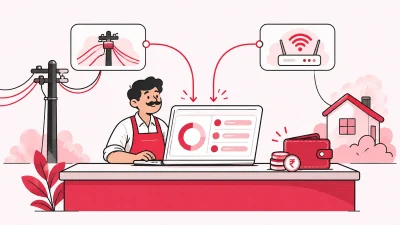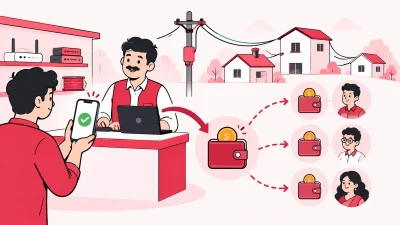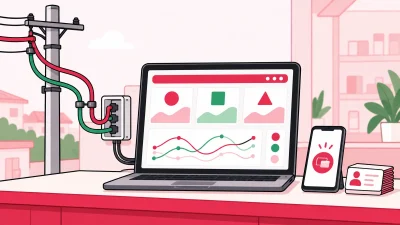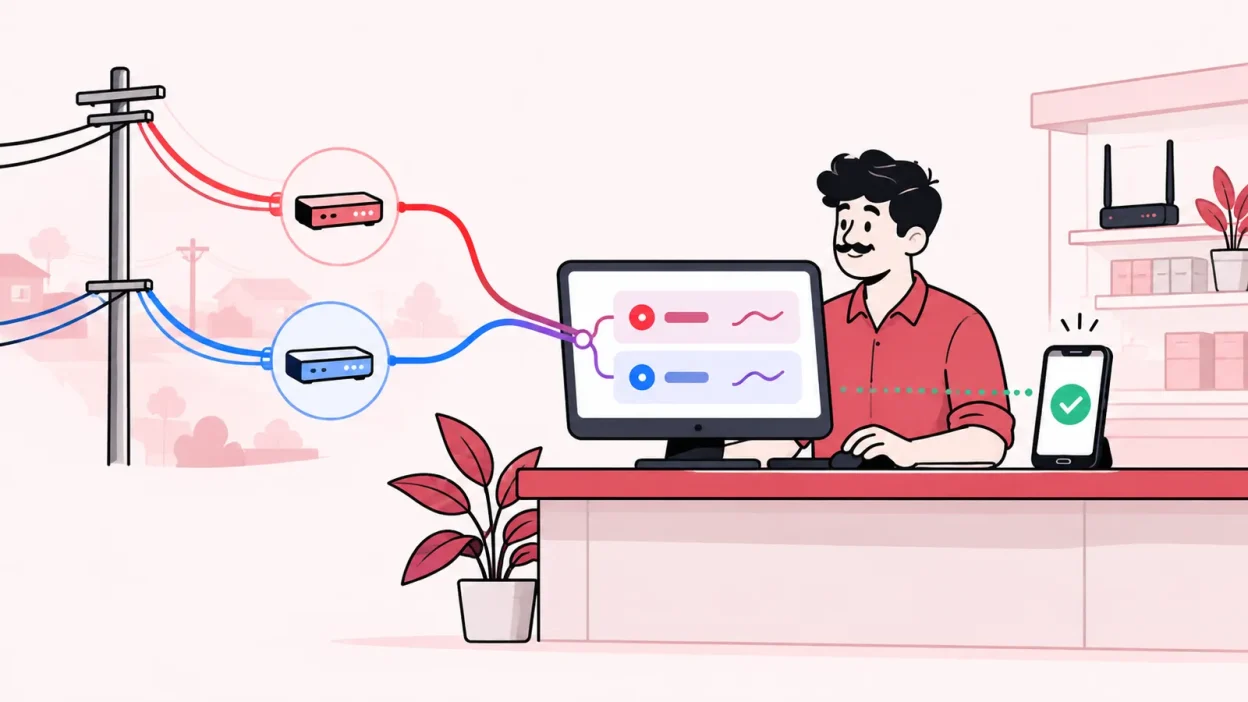
The one broadband partner login is the starting point for operators who manage OneBroadband customers and recharges. If you also resell GTPL, you need a clear way to keep both ISP accounts, customer records and daily collections organised without mixing one ISP’s work with the other’s.
This guide covers where to sign in, what to check after login, how to prepare your GTPL access, and how to bring both partner accounts into ISP Square. It uses the official OneBroadband login route and keeps your ISP credentials private.
Where the OneBroadband partner login is
Use the official OneBroadband partner login when you need to access your upstream partner account. The page identifies itself as an admin portal and provides fields for a username and password, along with security-code and OTP verification options.
Do not use a random login link from an old WhatsApp message or a search advertisement. Save the official address in your browser after you have checked it, and ask OneBroadband Partner Care if your account or login route has changed. OneBroadband lists partner support details on its official contact page.
What you need before you start
Keep these details ready at the shop counter. Never put an ISP password into a public document or share it with staff who do not need access.
| Item | Why it matters |
|---|---|
| OneBroadband partner username and password | Required for the official partner portal and the account connection step |
| OneBroadband security or OTP details | The portal may ask for an extra verification step |
| GTPL partner account details | You need a separate account for your GTPL work |
| Operator email and phone | Useful for your ISP Square operator account and account recovery |
| A short customer list | Helps you check that the right customer, plan and expiry appear after connection |
| Your current partner and device records | Makes it easier to confirm wallets, assignments and stock after setup |
If your GTPL access is not active yet, use the official GTPL affiliate enquiry page and choose the business option that matches your work. GTPL’s portal address and access process can depend on your partner relationship, so use the details supplied to you by GTPL.
Step 1: Open the official OneBroadband login
Why this matters: starting from the correct portal reduces the chance of entering your credentials on a copied or outdated page.
- Open the OneBroadband partner login in a current browser.
- Check that the address is on
partner.onebroadband.inbefore entering anything. - Enter your partner username and password.
- Complete the security code or OTP verification if the page asks for it.
- Select the sign-in option and wait for the partner portal to load.
Success looks like: you reach the partner account area instead of seeing the login form again. If the page asks you to change an expired password, complete that official flow and store the new password in your private password manager.
The login page also provides a forgotten-password route. Use it when available rather than repeatedly guessing a password. If you still cannot access the account, contact OneBroadband through its official partner support channel and keep your partner details ready.
Step 2: Turn the login into a daily work checklist
Why this matters: a successful login is only useful when it helps you confirm the customer’s service and the money movement behind it.
The exact menu names can vary with your partner role and portal version. After signing in, use the areas available in your account to complete this sequence:
- Check the partner account or wallet information before taking a large batch of recharges.
- Search for one known customer and confirm the connection or account identifier.
- Check the customer’s current plan and expiry details where your access provides them.
- Record the recharge reference or confirmation after a successful transaction.
- Match the portal result with your shop record before moving to the next customer.
- Sign out when you finish, especially on a shared counter computer.
Success looks like: you can identify the customer, the correct OneBroadband connection, the plan or expiry information available to you, and the result of the recharge without relying on memory or a loose notebook.
This process is also useful when you work with a staff member. The staff member can prepare the customer list, while you keep the final partner-account action under the right access. Do not give one shared password to everyone at the shop.
Step 3: Keep GTPL as a separate upstream account
Why this matters: OneBroadband and GTPL are different ISP relationships. A customer, plan, wallet or recharge reference from one must not be recorded as if it belongs to the other.
Use the GTPL portal address and credentials supplied by GTPL. Then prepare a simple two-column check before you combine your records:
| Check | OneBroadband | GTPL |
|---|---|---|
| Partner account | Your OneBroadband partner account | Your GTPL partner account |
| Customer identifier | The identifier shown in the OneBroadband portal | The identifier shown in the GTPL portal |
| Plan and expiry | Confirm from the OneBroadband record | Confirm from the GTPL record |
| Recharge reference | Save the OneBroadband confirmation | Save the GTPL confirmation |
| Support route | OneBroadband Partner Care | Your GTPL partner support route |
Do not create a second customer entry just because the same household can buy a different ISP connection. Record the ISP and connection clearly. This keeps plan, expiry, payment history and support conversations attached to the correct service.
If you are still applying to become a GTPL partner, submit the details requested on GTPL’s official affiliate page. Ask GTPL which partner portal to use after approval. This keeps the onboarding question with GTPL and the day-to-day reseller records with your shop system.
Step 4: Connect OneBroadband and GTPL in ISP Square
Why this matters: a shared operator panel gives you one working view while the upstream ISP accounts remain connected separately.
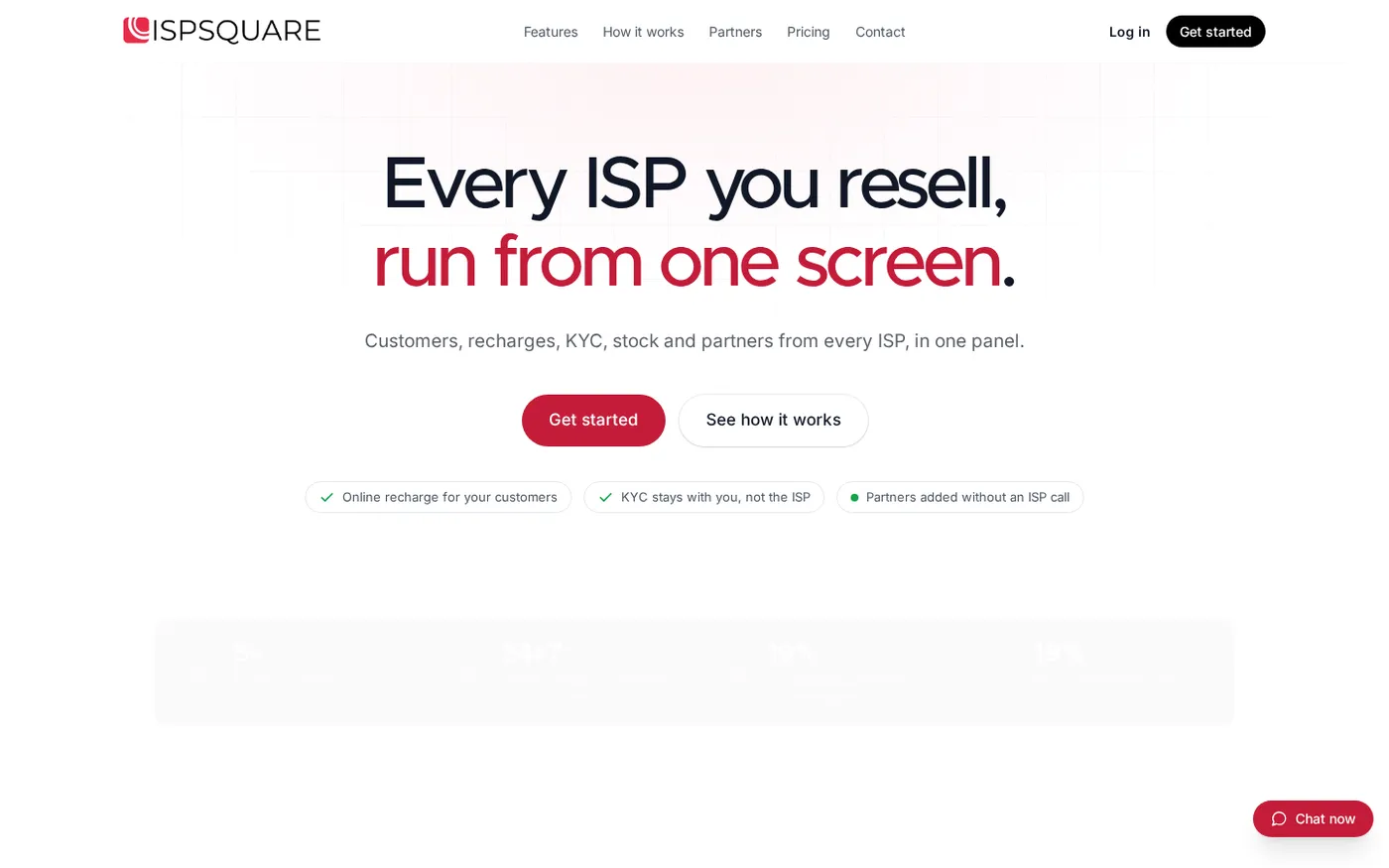
ISP Square currently connects OneBroadband and GTPL partner accounts. Customers, plans and balances sync every minute, so you can work from one customer list while still knowing which ISP serves each connection.
Follow these actions:
- Open the ISP Square login page. If you do not have an operator account, use the get started page.
- Sign in with your ISP Square operator account or create the account requested on the signup page.
- Open the area for connecting ISP partner accounts.
- Choose OneBroadband and enter the partner credentials requested by the connection form.
- Save the connection and wait for the account check to complete.
- Add GTPL as the second ISP connection and enter the GTPL partner credentials requested by the form.
- Review the combined customer list. Confirm the ISP, connection, plan, expiry, payment history and balance for a few known customers.
Success looks like: both partner accounts are connected, customers from each ISP can be found in one list, and the ISP identity remains visible on each connection. You can then use the web recharge page for customers, see the result as the operator, and keep the two upstream relationships in one operating workflow.
The panel also keeps KYC documents under your operator account rather than under one ISP. That means the records stay with your business if your upstream ISP relationship changes. Follow the exact KYC process required by your ISP and service area, and check with your ISP or CA when a compliance question is unclear.
Step 5: Verify recharge, wallets and partners
Why this matters: connecting accounts is the setup. Your daily benefit comes from checking that customer payments, partner work and balances are easy to trace.
Run one small verification for each ISP:
- Select a known OneBroadband customer and confirm the connection and expiry.
- Select a known GTPL customer and make the same check.
- Open the online recharge page and confirm that it is ready for a customer to pay without installing an app.
- Check that a completed recharge appears for the operator and reaches the correct ISP account.
- If you work with partners, open the operator → partner → sub-partner structure and check each login, wallet and customer assignment.
- Review the retail price and commission setup for the plan and level where you sell it.
ISP Square lets you set your own retail price per plan and level, keeps the ISP cost hidden from partners, and posts commission to the right wallet on each recharge. This is the part that helps when one shop handles several mohallas or when a partner brings customers under your account.
Step 6: Keep your ISP password safe
Why this matters: your partner login can give access to customer and recharge work, so credential handling must remain with the operator.
Use this routine:
- Enter each ISP password only in the official ISP portal or the ISP Square connection form.
- Do not paste passwords into a spreadsheet, ticket, WhatsApp chat or staff group.
- Give staff their own scoped logins for the screens they need instead of sharing your operator password.
- If an ISP password changes, update the connected account through the authorised connection flow.
- If a recharge request times out, check its status and ledger before taking another action. Do not blindly retry the same recharge.
- Sign out of both ISP portals and ISP Square when the shop session is over.
ISP Square stores connected ISP passwords encrypted and does not show them again. Its wallet ledger is append-only, and every staff action is logged, giving you a clearer record of who worked on a customer or wallet.
Verify both ISPs every morning
Once the setup is complete, use the same short opening checklist each day:
- Sign in to ISP Square and check both connected ISP accounts.
- Search one recent OneBroadband customer and one recent GTPL customer.
- Confirm the latest payment, plan and expiry shown for each.
- Check partner wallet balances and pending shop collections.
- Review device movement when a router or ONU was issued, installed or returned.
- Ask staff to work from their own logins so the action log stays useful.
Success looks like: you can answer “which ISP, which plan, which expiry, which payment and which partner?” from one operator view. If the portal is still showing a recent change, allow the documented minute-by-minute sync window and refresh before creating a duplicate record.
Troubleshooting the OneBroadband and GTPL workflow
The OneBroadband login keeps returning to the login page
Recheck the official domain, username and password. Complete the security code or OTP step if shown, then use the forgotten-password option instead of guessing repeatedly. For account or partner-access help, contact OneBroadband through its official support details.
I can sign in to OneBroadband, but I cannot find the right customer
Search using the customer or connection identifier shown in the portal, then compare the plan and expiry with your shop record. If the customer is in ISP Square, confirm that the connection is labelled OneBroadband and allow the sync window before creating another customer entry.
GTPL is active, but it is not in my combined view
Check that you added GTPL as a second ISP connection and entered the partner credentials for the correct account. If the account itself is not active, contact your GTPL partner route; do not substitute a subscriber login for a partner account.
A recharge timed out. Should I click recharge again?
When a recharge needs confirmation, first check the transaction status and wallet ledger. ISP Square keeps these records available so you can confirm the result before taking another action or asking support to review it.
FAQ
What is the official OneBroadband partner login?
The official route is the OneBroadband partner login. It asks for partner credentials and may show security-code or OTP verification. Save the address only after checking that you are on the official partner.onebroadband.in domain.
Can I run OneBroadband and GTPL together?
Yes. Keep each ISP relationship separate, then connect both partner accounts in ISP Square. The panel currently supports OneBroadband and GTPL, with a shared customer view for connections, plans, balances, payments and history.
Is the GTPL customer login the same as the GTPL partner login?
No. A subscriber or self-care login is not a partner account. Use the partner credentials and portal address supplied by GTPL, especially when you need to manage reseller work or connect an account to another system.
Can customers recharge without installing an app?
ISP Square provides a web recharge page. A customer can pay online, the relevant ISP account is topped up, and you can see the recharge as the operator.
How do I start using ISP Square with both accounts?
Keep your OneBroadband and GTPL partner credentials ready, open the ISP Square get started page, and connect each account separately. Review the current plans and pricing before choosing a plan, because the live page is the current reference.